

Getting Started
On this page
This guide takes you from a fresh Windows PC to MapleStory running with Violet loaded — download, activation, and your first launch. It takes about ten minutes.
Violet has three parts you'll touch during setup:
| Part | Where | What it does |
|---|---|---|
| Panel | panel.violet.cx | Your account — subscription, license key, and loader download |
| Loader | Your PC | A small console app that authenticates, keeps itself updated, and starts the game |
| Menu | game.violet.cx | The web dashboard where you add game accounts, launch, and control everything in-game |
Before you begin
Make sure you have:
- Windows — macOS and Linux are not supported.
- Visual C++ Redistributable (2015–2022) — official Microsoft download.
- An active Violet subscription — the download button only appears with an active license.
- A stable internet connection.
Most up-to-date Windows systems already have this runtime. You only need to install it if the loader closes instantly when you run it — see Troubleshooting if that happens.
1. Download your loader
- Go to panel.violet.cx and sign in with Discord.
- Open the Downloads page from the sidebar.
- Click Download Now. Your loader is a custom build tied to your license, so it's built just for you.
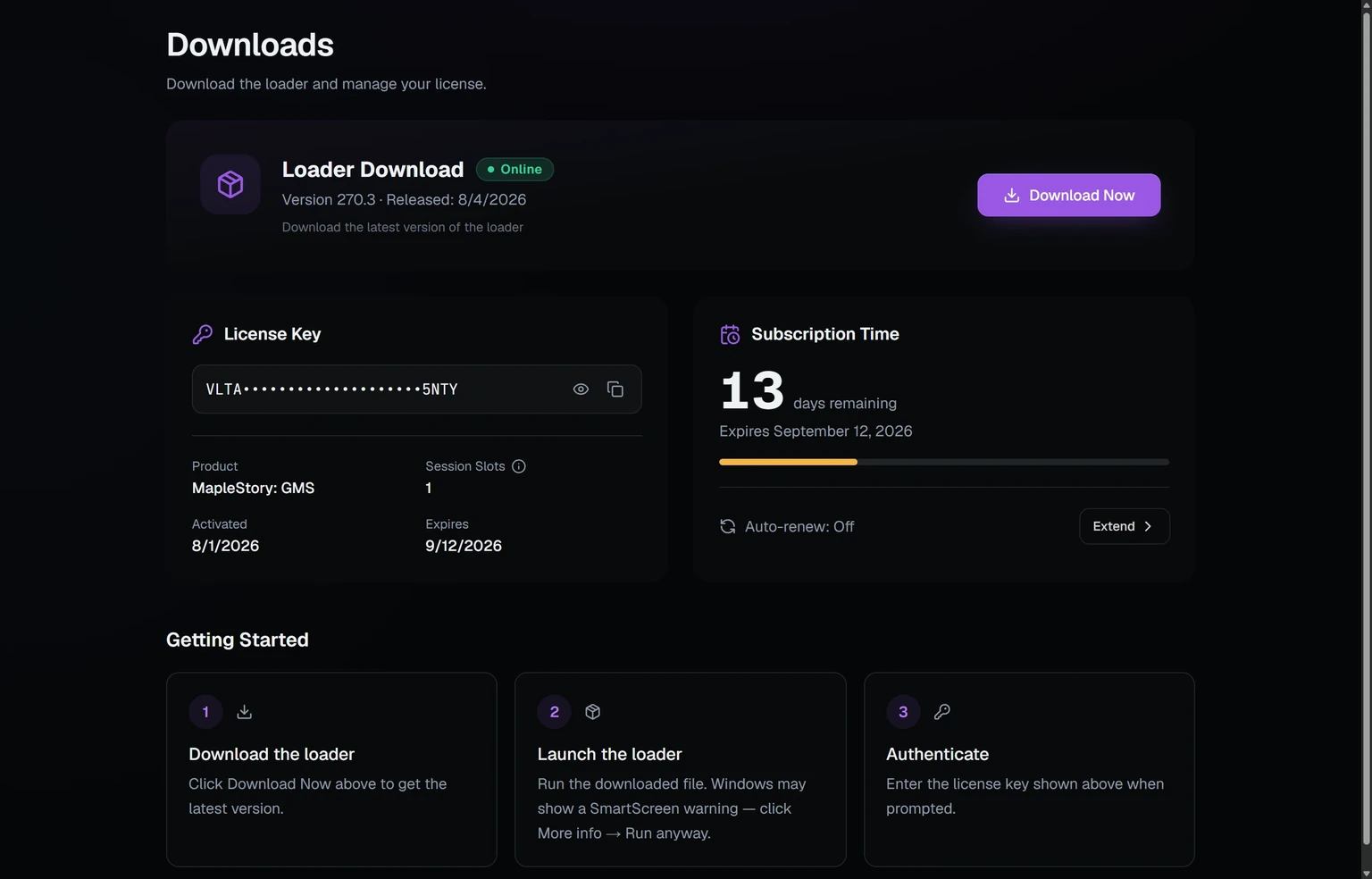
Keep this page open — you'll need the license key shown below the download card in the next step. Use the copy button next to the masked key.
SmartScreen may warn the first time you run it — click More info → Run anyway. If your antivirus flags it, see Loader won't stay open.
2. Activate the loader
- Run the downloaded
.exe. A console window opens. - When it asks
Enter your license key:, paste your key (right-click pastes in a console window) and press Enter. - The loader authenticates, downloads any updates, and prepares itself. When you see "Ready, waiting for commands from dashboard..." you're done here.
Your license key is saved after the first activation — future runs go straight to ready.
The loader is the bridge between your PC and the web menu, so closing its window disconnects your computer. It doesn't have to sit on your screen though — minimize it and it tucks away into your system tray, where double-clicking the Violet icon brings it back.
3. Open the menu
- Go to game.violet.cx and sign in with the same Discord account. (The Game tab in the panel takes you to the same place.)
- Your computer appears under Online within a few seconds of the loader being ready.
- Click Manage on your computer's card.
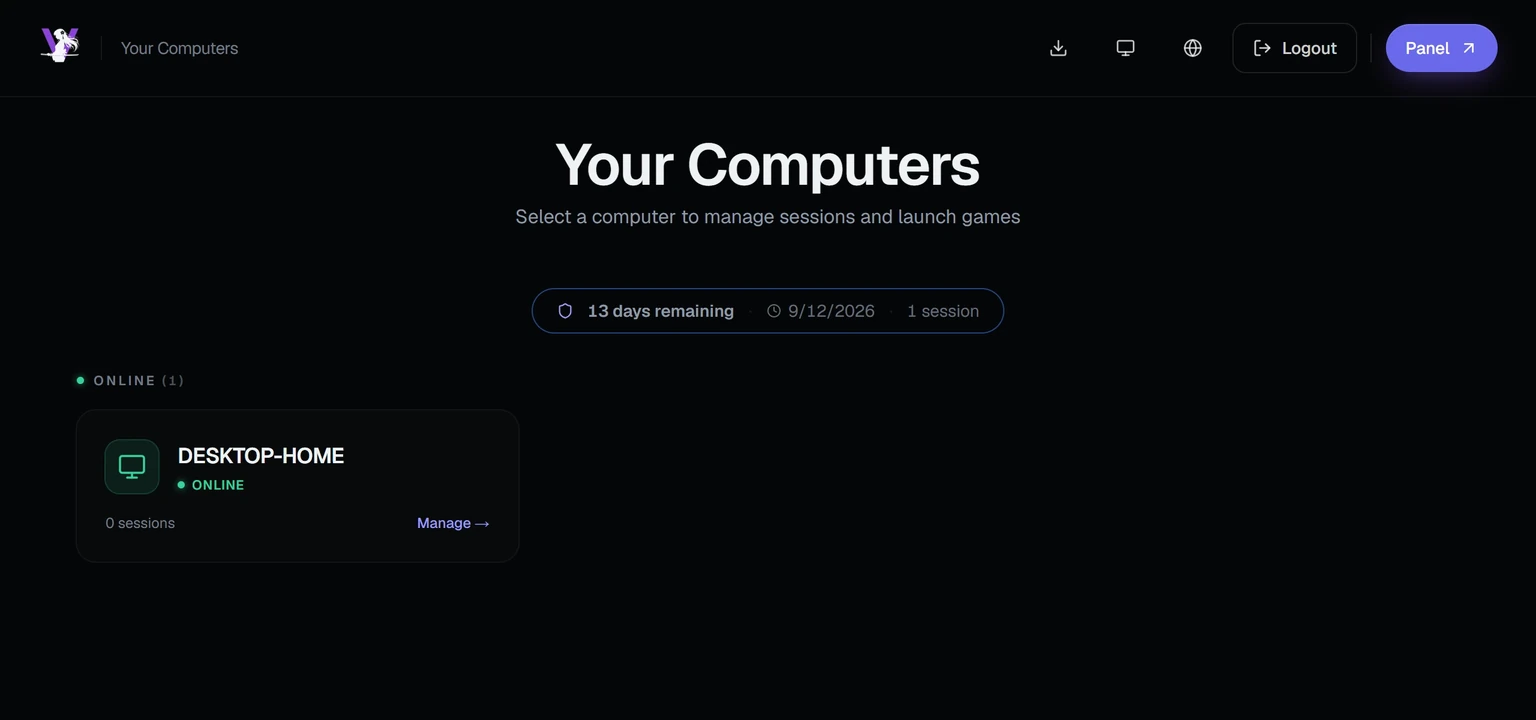
If the card stays offline, check the loader console is still open and showing the ready message — see Troubleshooting for more.
4. Add your game account
Inside your computer's view:
- If MapleStory isn't installed in the default location, set your MapleStory path to the game's install folder.
- Under Game Profiles, click Add Profile and enter your Nexon email and password.
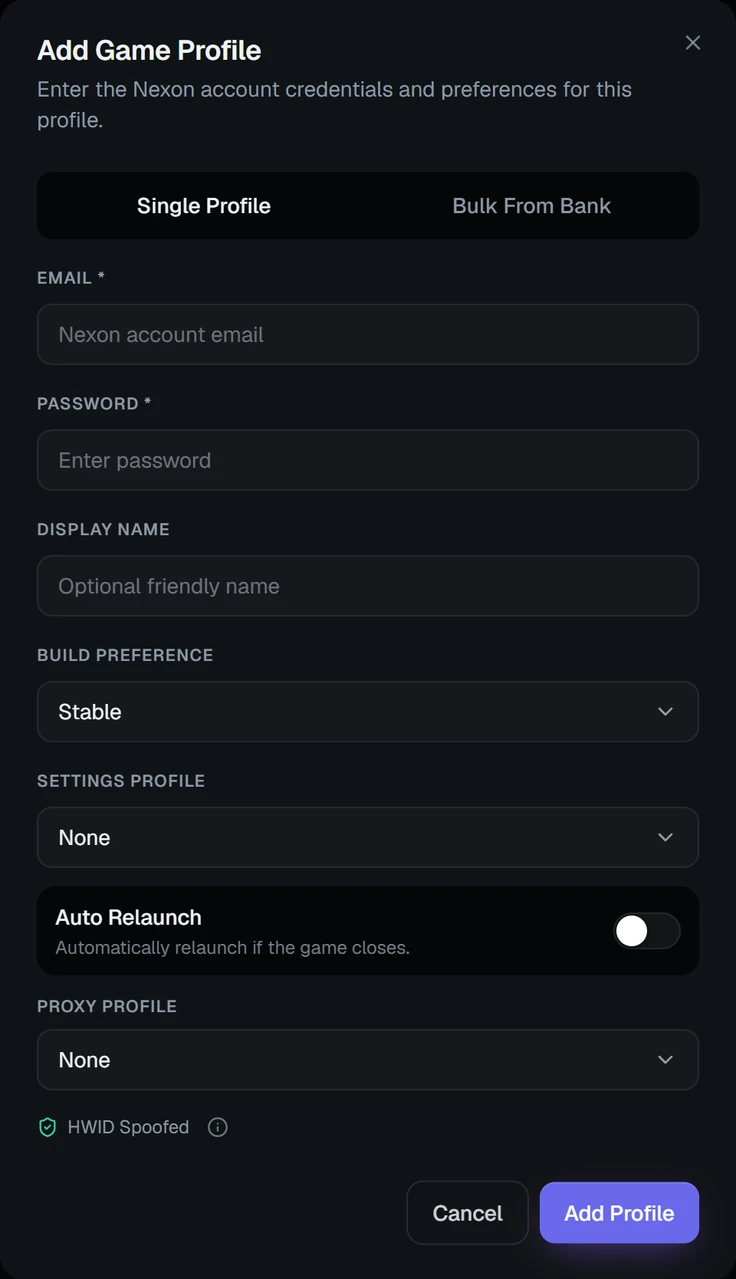
Only the email and password are required. Everything under them is optional: Display name is just a friendly label for the profile, Settings profile decides what the session starts with — one of your saved Violet configurations, Last used to pick up whichever profile this account had going last, or Blank to start from the defaults every launch — and Auto relaunch restarts the game if it closes. If you're setting up several accounts, the Bulk From Bank tab adds them in one go.
Account credentials are encrypted in your browser before they're sent, and only the loader on your own PC can decrypt them. They are never stored or readable in plain text.
5. Launch
- Click Launch on your game profile.
- The loader starts MapleStory, logs you in, and loads Violet automatically — you can follow the progress stages in the menu.
- Once your character is in game, a session card appears in the menu. Click it to open the dashboard and start configuring Violet.
If your Nexon account has email verification enabled, the first launch may ask for the code Nexon sends you. The device is remembered afterwards, so this is usually a one-time step.
Next steps
- Explore the dashboard tabs — combat, autos, and the rest are all configured live from the menu while you play.
- Save your setup as a settings profile so every launch starts configured.
- Want to automate more? Violet scripts are written in Lua — start with the scripting guide.
- Stuck or something looks wrong? Check Troubleshooting or ask in the Discord.