

Troubleshooting
On this page
- Find your message
- Loader won't stay open
- Activation and license
- HWID mismatch
- Connection and offline computers
- Computer not showing as Online
- First run and initialization
- "Initial setup required"
- "Please run the loader as administrator"
- "Please ensure HVCI is disabled"
- Loader updates
- Game launch, Nexon, and patch errors
- Fatal errors and support
Match the exact message you see below, then work through that section in order. If you have not set up Violet yet, start with Getting Started.
These are sanitized examples rendered from the current loader messages. Your Parameter values may differ; keep all three visible when you take your own screenshot because they identify where the failure happened.
Find your message
| What you see | Start here |
|---|---|
| The window flashes and disappears, or clicking the loader seems to do nothing | Loader won't stay open |
Invalid license key!, License key has expired, HWID mismatch, or License is frozen | Activation and license |
Unable to resolve the host, Network communication failure, Connection lost, or the computer stays offline | Connection and offline computers |
Initial setup required, Initialization failed, or a dialog mentions HVCI | First run and initialization |
Loader is out of date, Auto-update failed, or an update handoff did not finish | Loader updates |
| A red status appears on a game profile after you press Launch | Game launch, Nexon, and patch errors |
Loader has encountered a fatal error with Parameter1, Parameter2, and Parameter3 | Fatal errors and support |
Loader won't stay open
First check the Windows system tray. Violet minimizes to the tray, and opening a second copy restores the existing window and then exits. Double-click the Violet tray icon before treating a brief flash as a crash.
If there is no Violet tray icon:
- Install Microsoft's Visual C++ Redistributable for Visual Studio 2015–2022. Violet is a 64-bit application, so install the x64 package.
- Restart Windows, then run the loader again.
- If Windows Security or another security product removed the file, check Protection History. Restore or allow only the loader you downloaded from your own Violet panel, then retry.
Violet's loader does not require .NET Framework, and you should not need a third-party bundle of old runtimes.
Do not disable your firewall or antivirus globally, open inbound ports, or exclude your entire MapleStory folder. Allow only the verified loader file or app when a security product specifically blocks it.
SmartScreen may show an unrecognized app prompt for a newly built loader. Confirm the file came from your own panel, then choose More info → Run anyway. Never use a loader sent by another person or downloaded from a mirror.
Activation and license
The loader deliberately gives different messages for different license states:
| Exact message | What to do |
|---|---|
The saved license could not be read. Please enter it again. | Copy the current key from Panel → Downloads and paste it again. Do not delete local files first; the saved credential may only be temporarily unreadable. |
License keys cannot be empty or longer than 4096 characters. | Use the copy button on the panel instead of typing the key, then paste it at the prompt. |
Invalid license key! | Copy the key again and check for a missing or changed character. Make sure it belongs to the same Violet account. |
License key has expired | Renew the subscription in the panel, then enter the current key when the loader prompts again. |
Authentication succeeded, but Violet could not securely save the key. | The current session authenticated, but Violet may ask for the key next time. Keep using the same Windows account; contact support if the warning repeats. |
License is frozen, please contact an admin | A local reinstall cannot fix a frozen license. Open a support ticket. |
User banned, please contact an admin | Contact staff. Do not keep retrying authentication. |
HWID mismatch
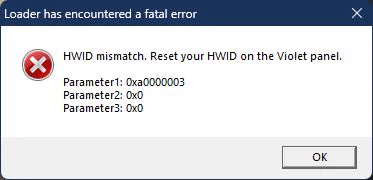
Example dialog; the parameter values on your computer may differ.
The loader normally opens the reset page for you. If it does not:
- Open Panel → Profile and stay on the Account tab.
- Find Hardware ID, select the old computer, and choose Reset.
- Open the loader on the computer you want to bind. The next successful login uses the freed slot.
If no reset is available or you do not recognize the linked computer, open a support ticket instead of posting the hardware details publicly.
Connection and offline computers
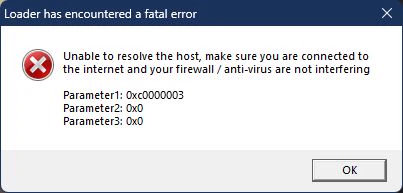
This guidance also applies to Network communication failure, make sure you are connected to the internet and your firewall / anti-virus are not interfering.
- Confirm the PC can reach other websites.
- If you use a VPN or profile proxy, reconnect it or test once without the unreliable route.
- Allow the official Violet loader app through Windows Firewall and any third-party security product. Allowing the app is safer than opening a port.
- Reopen Violet after connectivity returns.
If the console is still printing reconnect attempts, let it finish. When it reaches Connection lost followed by Press Enter to exit..., press Enter and reopen the loader after the network or Violet service is available again.
Computer not showing as Online
If the loader is connected but the PC is offline on game.violet.cx:
- Check the loader is still running and shows
Ready, waiting for commands from dashboard.... - Look for the Violet icon in the system tray and double-click it to restore the console.
- Refresh the menu after a few seconds.
- If it remains offline, apply the firewall/app steps above and restart the loader once.
First run and initialization
"Initial setup required"
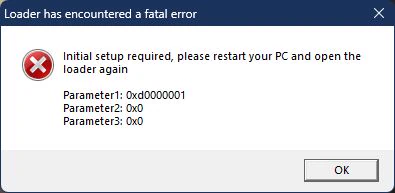
Restart Windows once, then open the same loader again. If the same dialog appears after a full restart, keep the complete screenshot and contact support; repeating restarts will not add useful information.
"Please run the loader as administrator"
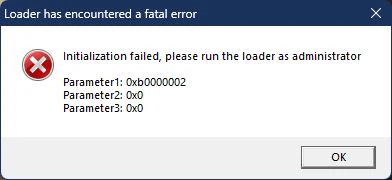
- Close MapleStory and the Violet tray instance.
- Right-click the loader downloaded from your panel and choose Run as administrator.
- Approve the Windows UAC prompt.
If it still fails, restart Windows and check that your Windows account or organization policy permits administrator elevation. Do not disable UAC.
"Please ensure HVCI is disabled"
The loader can show Initialization failed (Code: 0x...), please ensure HVCI is disabled for several different startup checks, not only Windows Memory Integrity.
Restart Windows, close debuggers, process inspectors, injectors, and overlay tools, then retry once. If the message returns, capture the exact code and contact support. Do not change Windows security settings solely because of this generic message; staff should first identify what the code means and explain the tradeoff.
Loader updates
Loader is out of date (local v...), updating... is informational. Leave Violet open while it downloads and hands off to the new build.
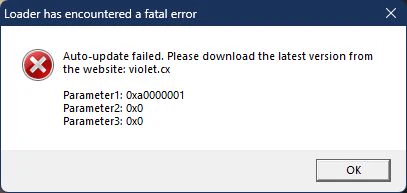
If auto-update fails:
- Close the Violet tray instance and wait a few seconds.
- Download a fresh loader from your own Panel → Downloads.
- Save it in a normal local folder where your Windows account can write, then run it again.
- Check protection history if the replacement disappears or cannot be written.
Do not run or rename leftover .new or .old update files yourself.
Other update-startup messages have narrower fixes:
| Exact message | What to do |
|---|---|
Violet could not validate the update handoff. Please launch it again. | Close the dialog and launch Violet again. |
The previous Violet process did not finish the update. Please wait a moment and try again. | Wait a few seconds, make sure no second copy is open in the tray, and retry. |
Violet could not create its single-instance guard. Restart Windows and try again. | Restart Windows, then launch one copy of Violet. |
Game launch, Nexon, and patch errors
These messages appear as a red status on the affected game profile in the web menu:
| Exact message | What to do |
|---|---|
MapleStory path not found: ... | Open the computer's settings and set Game Path to the full path of the real MapleStory.exe, not a folder or shortcut. If the executable is missing, repair the game through Nexon. |
Invalid Nexon credentials | Sign in directly through Nexon to verify the account, then update the email and password on the Violet game profile. |
Could not reach Nexon login - check your proxy/network | Check the profile proxy and internet connection. If appropriate for your setup, test once without the proxy. |
Nexon login is rate limited | Stop repeated launch attempts and wait before retrying. A shared proxy can also be rate-limited. |
Game is not playable in your region | Check the account and region with Nexon support. Do not try to bypass the regional restriction. |
Your MapleStory (v...) is out of date. Please update your game client. | Update or repair MapleStory through Nexon, then retry. |
MapleStory updated to v... before we did. A new build is on the way — please try again soon. | Wait for a compatible Violet build. Do not downgrade MapleStory. |
Insufficient disk space for update or Need ... GB free | Free at least the amount shown, close MapleStory and Nexon, and retry. |
Failed to update: ..., Failed to open file: ..., or Failed to create selected game directory | Make sure the selected folder is writable, close programs using the game files, check for a quarantined file, and retry. Do not delete the whole game folder. |
MFA verification failed - invalid code | Request or enter a fresh six-digit code in the menu. Do not reuse an expired code. |
A launch is already in progress or Game is already running for this profile | Wait for the active launch to finish, or close the existing MapleStory instance before trying again. |
Injection failed | Save the profile status, loader dialog or console, and debug log, then contact support. Reinstalling at random can remove the useful evidence. |
Fatal errors and support
A window titled Loader has encountered a fatal error includes the readable message plus Parameter1, Parameter2, and Parameter3. Those values are diagnostic information, so do not crop them from your screenshot.
Before reopening Violet, copy loader_debug.log: it is normally beside the loader and falls back to the Windows temporary folder. The log is overwritten on each launch. Review it before sharing because a configured proxy address or a personal file path may appear in it.
Open a ticket in the Violet Discord with:
- the step that failed;
- the exact error text and a full screenshot;
- the loader build/date from the console title, if visible;
- your Windows version;
- the copied
loader_debug.log, shared privately after you review it.
Redact license keys, Nexon credentials, MFA destinations and codes, Windows usernames, personal paths, proxy addresses, and hardware identifiers. Keep the three Parameter values visible.